레이블이 SmartFusion인 게시물을 표시합니다. 모든 게시물 표시

2013/10/06

SmartFusion (A2F500-FGG256) MSS 프로그램 소스-1

#include "mss_uart.h"
#include &ltstdio.h&gt
#include &ltstdlib.h&gt

//#define ACTEL_STDIO_THRU_UART

#define RxBufferSize 0x20
char RxBuffer0[RxBufferSize];
uint16_t RxCounter0 = 0;

void UART0_Putch(char tmp);
uint32_t UART0_get_Number(void);
void show_Menu(void);


/* Main function */
int main(void)
{
char KeyIn;

/* Initialize and configure UART0. */
MSS_UART_init(&g_mss_uart0,MSS_UART_115200_BAUD, MSS_UART_DATA_8_BITS | MSS_UART_NO_PARITY | MSS_UART_ONE_STOP_BIT);

MSS_UART_polled_tx_string(&g_mss_uart0, "Start FW -------------------------ver 0.0.1\r\n");
show_Menu();

while(1)
{
#if 1
KeyIn = UART0_get_Number();
switch(KeyIn){
case 1:
MSS_UART_polled_tx_string(&g_mss_uart0, "1. HELP : Show menu explanation\r\n");
break;
default :
MSS_UART_polled_tx_string(&g_mss_uart0, "Invalid input value\r\n");
break;
}
MSS_UART_polled_tx_string(&g_mss_uart0, "anonymous>");
#endif
}

return 0;
}

void UART0_Putch(char tmp){
g_mss_uart0.hw_reg->THR = tmp;
}

uint32_t UART0_get_Number(void){
uint32_t KeyIn, key_value, i;
uint8_t status = 0;

/* Receive a string (Max RxBufferSize bytes) from the Hyperterminal ended by '\r' (Enter key) */
do
{
status = g_mss_uart0.hw_reg->LSR;
g_mss_uart0.status |= status;
if(((status & 0x01) != 0)&&(RxCounter0 < RxBufferSize))
{
key_value = g_mss_uart0.hw_reg->RBR;
status = g_mss_uart0.hw_reg->LSR;
g_mss_uart0.status |= status;
UART0_Putch(key_value);
if(key_value == '\r'){
RxBuffer0[RxCounter0]='\0';
UART0_Putch('\n');
KeyIn = atoi(RxBuffer0);

RxCounter0 = 0;
for(i = 0; i < RxBufferSize; i++)
RxBuffer0[i] = 0;

g_mss_uart0.hw_reg->RBR;
status = g_mss_uart0.hw_reg->LSR;
g_mss_uart0.status |= status;
return KeyIn;
}
else{
RxBuffer0[RxCounter0++] = key_value;
}
}
}while((key_value != '\r')&&(RxCounter0 != RxBufferSize));


return -1;

}

void show_Menu(void){
MSS_UART_polled_tx_string(&g_mss_uart0, "1. HELP : Show menu explanation\r\n");
MSS_UART_polled_tx_string(&g_mss_uart0, "anonymous>");

}


아래와 같이 실행된다.


이 소스를 베이스로 Fabric과 ACE를 돌려봐야긋다.

2013/09/30

SmartFusion (A2F500-FGG256) UART

Actel 홈페이지에서 Using UART with a SmartFusion cSoC - Libero SoC and SoftConsole Flow Tutorial의 내용임.

먼저 리베로SoC를 실행해서 프로젝트를 생성해보자.


A2F500 256 BGA 확인하고 OK


이렇게 만들어진다.


다음은 Configuring MSS Peripherals
A2F500_UART_MSS_0를 더블클릭해보자.


새창이 뜬다.


여기서 WATCHDOG은 Disable 해놓자. 활성화 시켜놓으면 계속 리셋된다.

Clock Management 박스를 더블클릭해서 클럭 설정을 하자.


빨간색 박스 안에 설정만 바꾸면 된다. On-Chip RC Oscilator 100MHz 입력을 80MHz로 바꿔서 MCU에서 사용할 거임. OK 눌러주자.

File > Save 해주고 아래 그림과 같이 Update Instance(s) with Lastest Component... 실행.


다음은 Design > Configure Firmware


HAL_0의 Generate 체크박스를 클릭하면 다운로드 어쩌네하면서 드라이버를 주루룩 다운로드 한다.


File > Save에서 DESIGN_FIRMWARE 저장해주고 SmartDesign > Generate Component 를 실행한다.

실행이 완료되면 프로젝트 폴더내에 SoftConsole 폴더가 새로 생성된다.


Design Flow 윈도우 제일 아래 부분에 Develop Firware 항목의 Write Application Code를
더블 클릭하면 생성된 소프트콘솔 프로젝트가 실행된다.


이렇게 뜬다.


여기서 프로그램 짜면 되는거지...
튜터리얼에 보면 친절하게도 예제 프로그램도 있다. 고대로 함 넣어보자.


#include "mss_uart.h"
#define Microsemi_logo \
"\n\r \
** ** ******* ****** ***** **** ***** ****** ** ** ******* \n\r \
* * * * * * * * * * * * * * * * * \n\r \
* * * * * * ***** * * **** ****** * * * * * \n\r \
* * * * * * * * * * * * * * * \n\r \
* * ******* ****** * * **** ***** ****** * * ******* "

/* Main function */
int main()
{
const uint8_t greeting[] = "\n\rWelcome to SmartFusion "
"- customizable system-on-chip (cSoC)";

/* Initialize and configure UART0. */
MSS_UART_init
(
&g_mss_uart0,
MSS_UART_57600_BAUD,
MSS_UART_DATA_8_BITS | MSS_UART_NO_PARITY | MSS_UART_ONE_STOP_BIT
);

/* Send the Microsemi Logo over the UART_0 */
MSS_UART_polled_tx_string( &g_mss_uart0, (const uint8_t *)Microsemi_logo);

/* Send greeting message over the UART_0 */
MSS_UART_polled_tx( &g_mss_uart0, greeting, sizeof(greeting) );

while(1)
{
}
return 0;
}


Project > Build Configurations > Set Active > 2 Release 로 변경


Project > Properties를 선택해라. 새 창이 뜨는데 거기서 C/C++ Build 항목의 Setting를 선택하면 GNU C Linker 설정을 할 수 있다. Miscellaneous를 선택해서 Linker flags를 변경하자.


production-execute-in-place.ld로 바꿔주면 된다.
Project > Build All 로 컴파일을 해보자.
혹시 ld 파일을 찾을 수 없다고 에러가 뜨면, 상대 경로를 절대 경로로 바꿔주면 된다.

.hex 파일이 생성되었으면 이젠 SmartFusion에 다운로드 해보자.
다시 리베로SoC로 돌아가자.

ENVM 블럭을 더블클릭하면 설정창이 뜬다.


Available client types에서 Data Storage를 선택하고 Add to System...


아래와 같이 적당히 이름 정해주고, hex 파일 위치 지정하고, Size of word를 32 bits로 변경한다. 그리고 OK


SmartDesign > Generate Component 실행해서 ENVM 업데이트하고
Design > Generate Programming Data 실행


그리고 Program Device...인데....

왜 자꾸 Run Failed가 뜨지...


2012/12/05

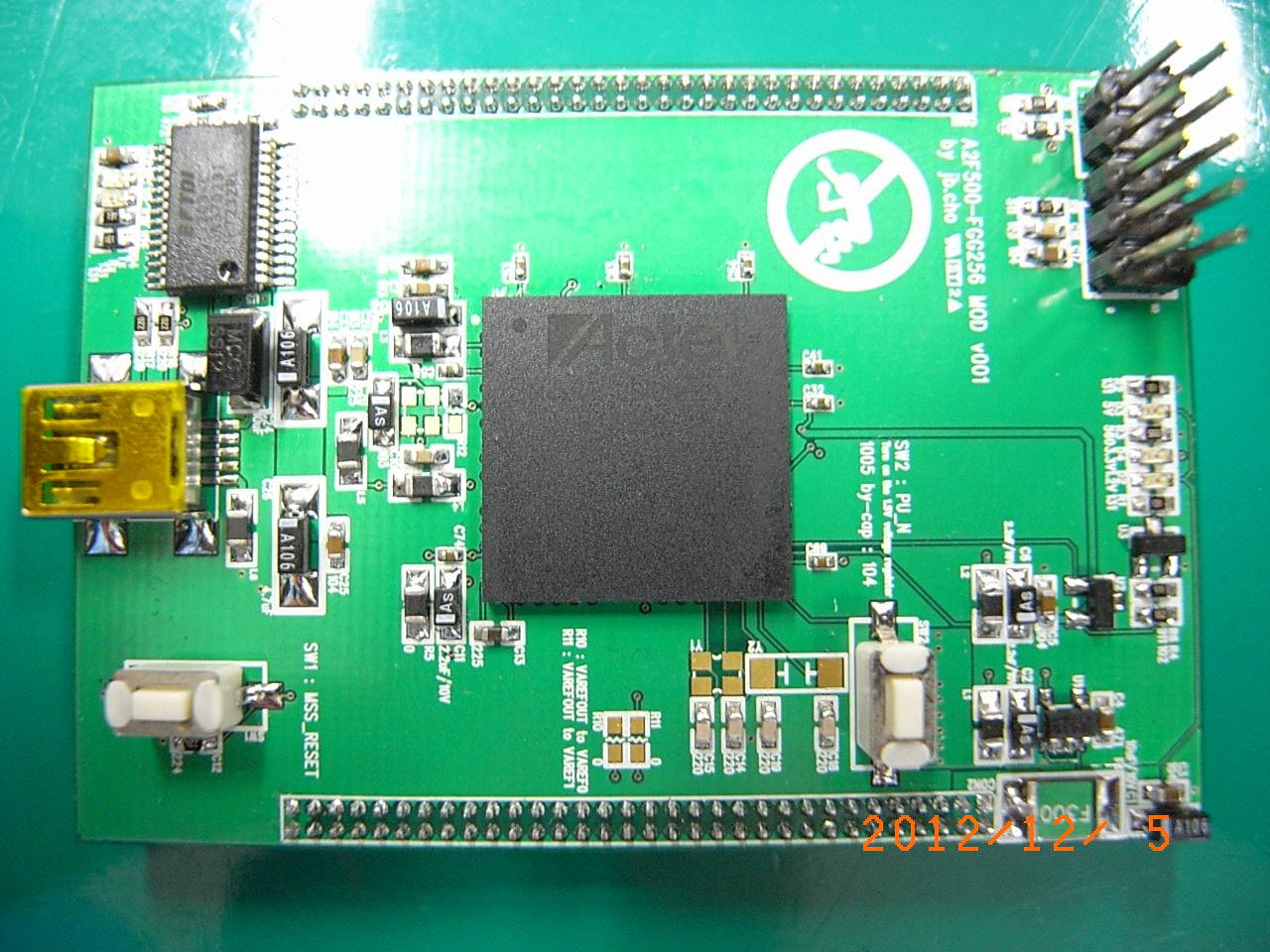
SmartFusion (A2F500-FGG256) Module


어제 PCB 받고 테스트 중...


BGA는 아는 업체에 부탁해서 올리고 나머지는 수납.

악텔 홈페이지의 튜터리얼 중
- Using UART with a SmartFusion cSoC Libero and SoftConsole Flow Tutorial
- SmartFusion cSoC: Building Executable Image in Release Mode and Loading into eNVM Tutorial
을 참조해서 테스트 했다.

SoftConsole에서 컴파일 할때 자잘한 에러들이 뜨는데 몇번 하다 보니 별거 아니드만.


일단 MSS 테스트만 진행해봤다.

다음 할일은 아날로그 블럭 테스트.
그다음은 Fabric 블럭 테스트.


아주 기대가 됩니다요.